Article to audio
How to Turn an Article into an MP3 for Offline Listening
Make a listening copy of an article, review it, and save a file you can take with you.
Read the guide Sayleaf
An easier way to listen
Turn writing into natural audio. Tune the voice, listen at your pace, and save an MP3 for wherever the day takes you.
Inside Sayleaf
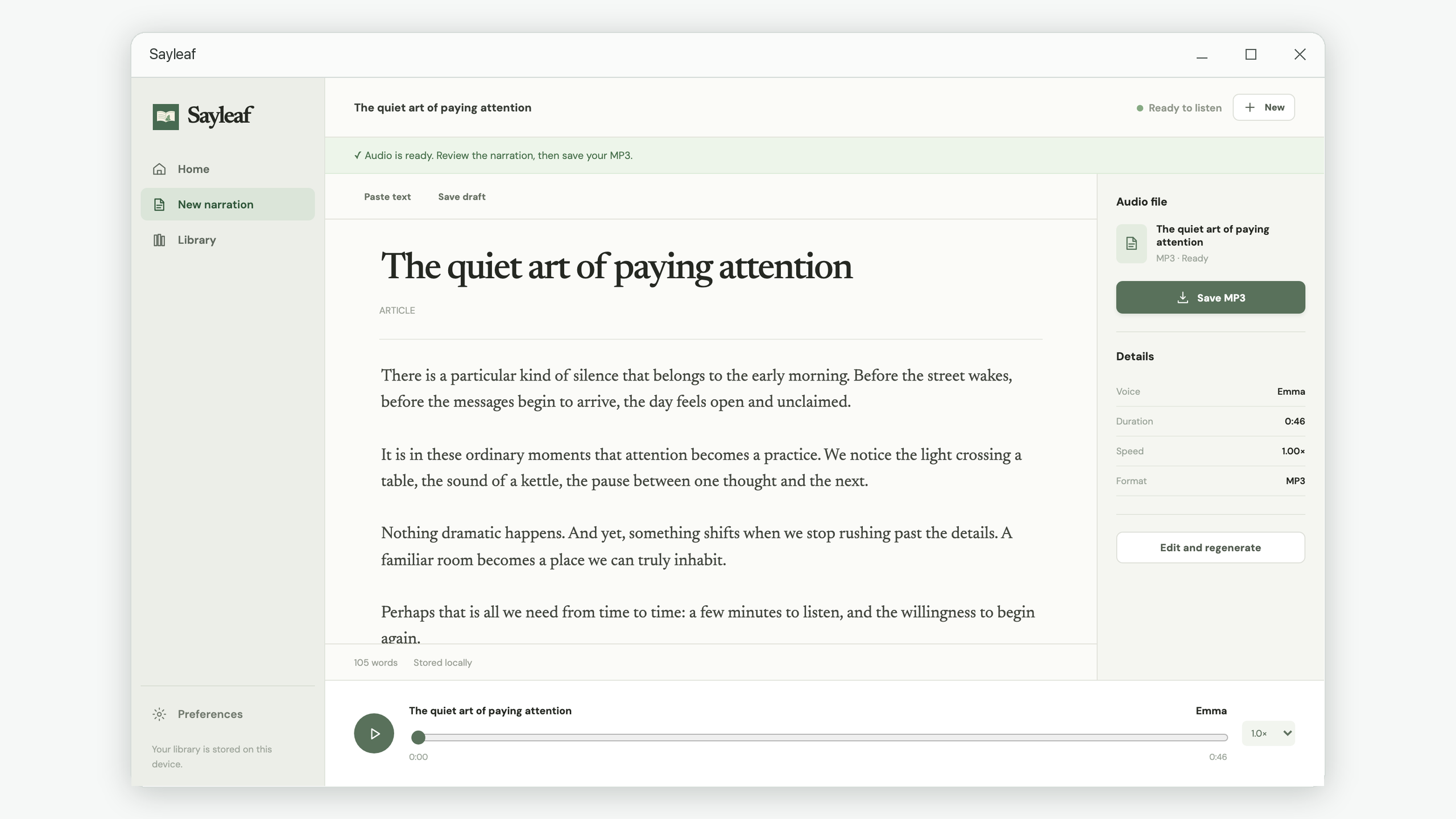
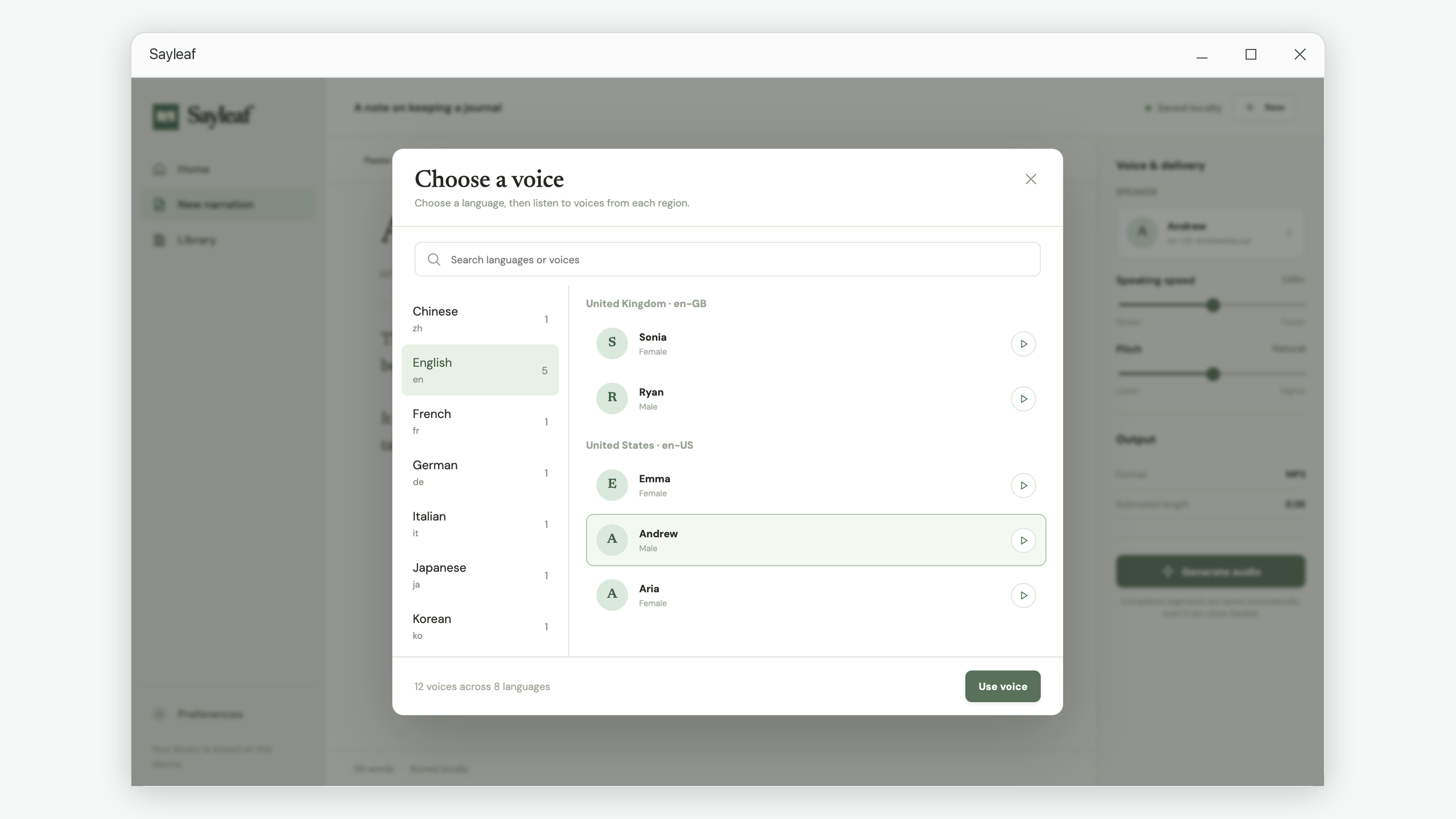
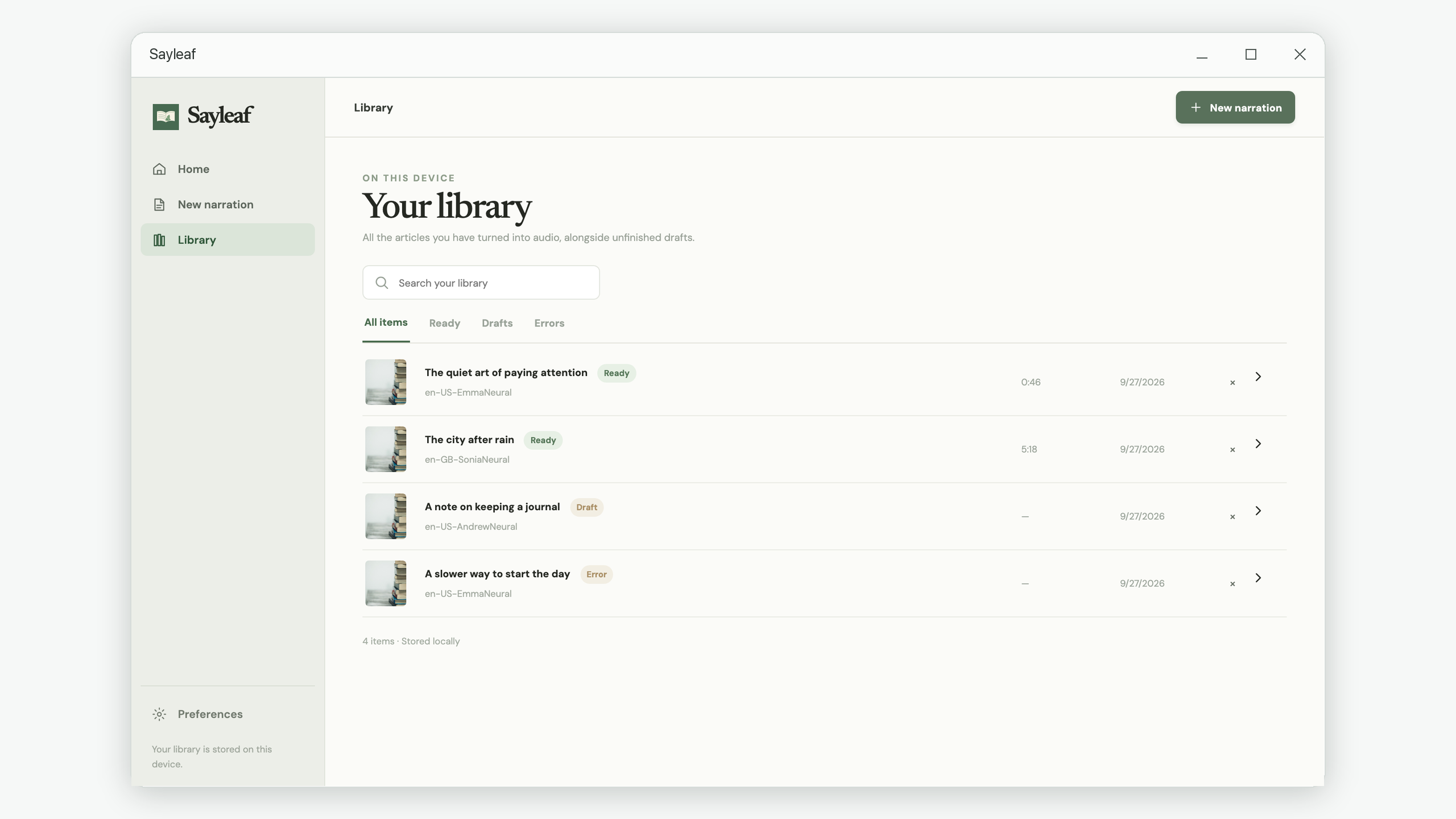
Review your narration alongside the article, choose a voice by language, and return to saved work in the Library. Select any screenshot to see it full-size.
Features
A calm workspace for words you would rather hear.
Paste text, write directly, or open a UTF-8 text file.
Browse voices by language and region, then compare a short preview.
Adjust speaking speed and pitch to match your material.
Play a finished narration before saving a copy.
Return to drafts and finished audio in one searchable place.
Choose the folder and filename for your audio.
How it works
Paste, type, or import an article.
Preview a speaker and adjust the delivery.
Play the result and export an MP3.
Practical reading
Article to audio
Make a listening copy of an article, review it, and save a file you can take with you.
Read the guideVoice selection
Find the right language and regional voice without scrolling through one enormous list.
Read the guideTroubleshooting
Keep completed audio after a pause, connection failure, or restart, and generate the missing parts.
Read the guideWriting tutorial
Use a listening pass to spot awkward sentences, repeated words, and unclear transitions in a draft.
Read the guideFAQ
No. Sayleaf does not use an account or cloud library.
Drafts, settings, and generated audio are kept in a local application folder on your device. Exported MP3 files are saved to the folder you choose.
Yes. Voice previews and audio generation use an online speech service.
When you request a preview or generate audio, Sayleaf sends the relevant text to the speech service for that request. See the Privacy Policy for details.
UTF-8 plain-text files up to 100 KB. You can also paste or type text.
Yes. Edit the text or voice settings and generate a new narration.
Yes. Sayleaf keeps completed segments after a pause, failure, or restart. Reopen the saved article and choose Resume generation to fill the missing parts. Keep the text and voice settings unchanged to reuse those segments. Read the recovery guide.
Sayleaf exports MP3 files.
Email support@iamdev.me.
Make an article into something you can listen to.
View in Microsoft Store