 Sayleaf
Troubleshooting
Why Long Text-to-Speech Jobs Stop—and How to Resume Them
It is frustrating to reach the middle of a long narration and lose the connection. The useful question is not just “how do I try again?” It is “how do I keep the work that already finished?” In Sayleaf, completed audio segments stay available so the next attempt can fill the gaps.
Keep the saved article and its voice settings unchanged. Restore the internet connection, reopen the article if needed, and choose Resume generation. Sayleaf checks saved segments and generates the missing, failed, or damaged ones.
Why a longer narration can stop partway through
Voice generation uses an online speech service. Sayleaf divides a long article into smaller segments and requests their audio in order. Each segment can encounter a connection problem or a service error. A computer restart or closing the application also interrupts the segment currently being generated.
Sayleaf saves each completed segment separately. If one segment fails, it can continue saving later segments during that attempt. The final MP3 is assembled in the original order only when every required segment is available. A saved count therefore describes completed pieces, not necessarily one uninterrupted stretch from the beginning.
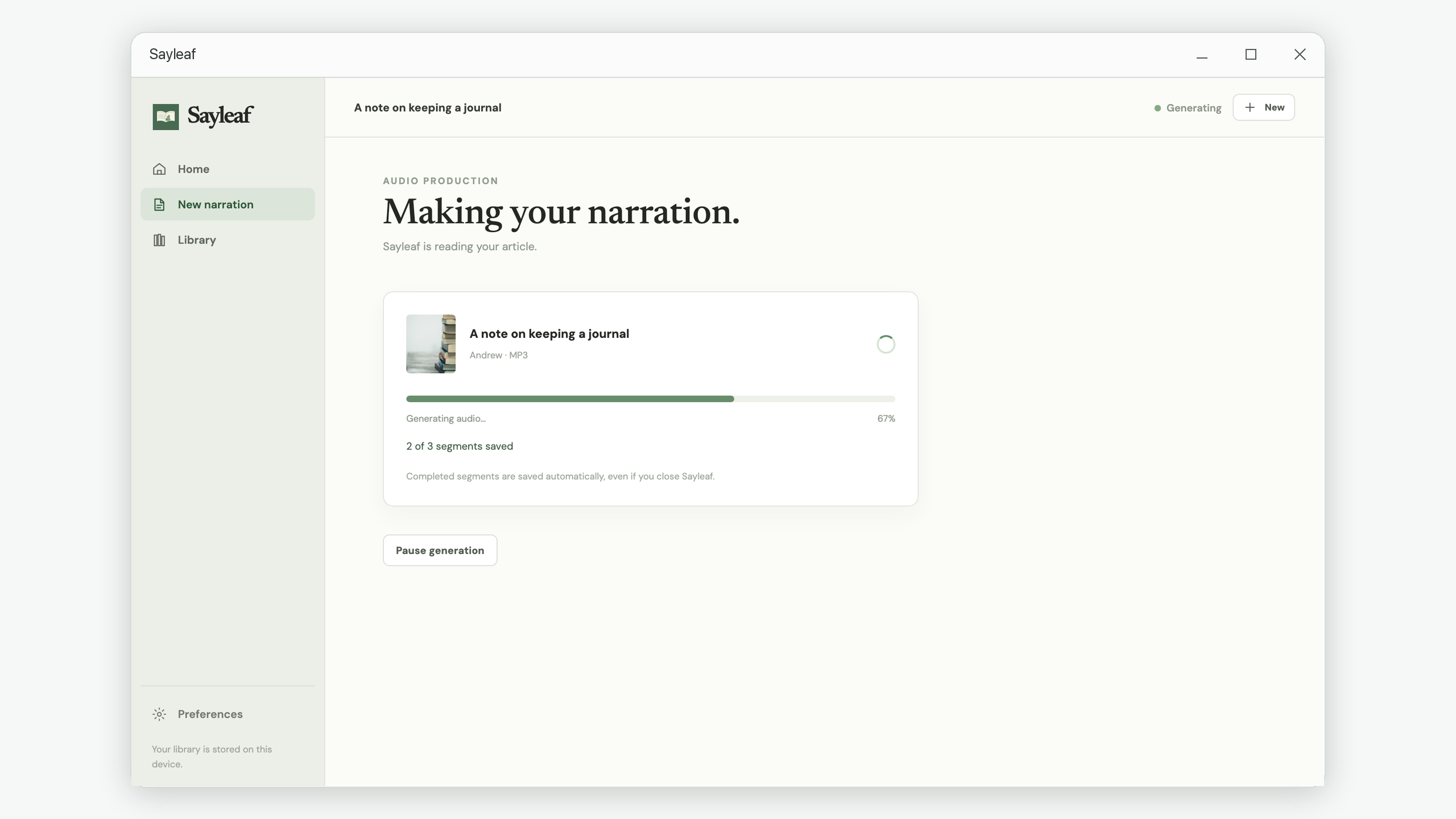
For example, imagine five segments. Segments one and two finish, segment three fails, and segments four and five finish. Sayleaf keeps the four completed segments. On the next attempt, it can request segment three rather than repeat all five. This is an illustration of the workflow, not a claim that every article contains five segments.
How to resume after a connection failure or restart
- Keep the article. Do not delete it from the Library or clear local history while you still need its completed segments.
- Restore connectivity. Resume generation requires access to the speech service. An existing saved segment can be reused, but a missing segment cannot be generated offline.
- Open the saved narration. After restarting Sayleaf, find the article in the Library and open it. The editor or interrupted-generation screen shows how many segments were saved.
- Confirm the same text and settings. Keep the article body, speaker, speaking speed, and pitch as they were for this generation.
- Choose Resume generation. Sayleaf checks the saved audio and skips usable segments. Once the missing pieces finish, review the completed narration and save the MP3.
How to pause deliberately
On the generation screen, select Pause generation and wait for the editor to return. Completed segments are preserved. A partially received segment is not counted as complete and will be generated again when you resume.
If you navigate away while generation continues, reopening that article reconnects its progress view to the active task. If you close Sayleaf entirely or restart the computer, reopen the saved article and resume explicitly; a restart does not mean that an unfinished task will automatically continue in the background.
Which changes prevent reuse of the old audio?
Resuming is safe only when the audio belongs to the current article and delivery settings. Changing the article’s body, voice, speaking speed, or pitch creates a different generation configuration. Sayleaf will not mix segments from the old settings into that new narration.
If your immediate goal is to recover an interrupted result, finish it before making revisions. If you need a different voice or wording, regenerate with those changes and expect the new configuration to start again. Deleting an article or clearing history removes its saved segments. Exporting with Keep generated audio in Library switched off also removes the app-managed audio and its checkpoints after export.
If it still does not finish
- The saved count is greater than zero: keep the article unchanged and retry when the connection or service is available. Already saved pieces remain useful.
- The saved count is zero: no segment completed successfully for these settings. Check connectivity before another attempt.
- You changed the wording or voice: you are generating a new configuration, so the old count does not represent progress on the new audio.
- The text is rejected before generation starts: check the 100,000-character article limit or the 100 KB UTF-8 text-file import limit. That is a text-input issue, not an interrupted audio task.
Resume support preserves completed work; it cannot make an unavailable speech service respond. If repeated attempts fail, keep the article and try later or contact support@iamdev.me with the action you took and the message shown. Once the audio is ready, use the export walkthrough to save your listening copy.