 Sayleaf
Article to audio
How to Turn an Article into an MP3 for Offline Listening
An article is useful only if you have time to read it. A saved audio copy lets you return to the same material on a walk, during a commute, or away from the screen. The practical goal is a complete MP3 you have checked—not just a voice reading a browser tab once.
Paste your article into Sayleaf or open a UTF-8 .txt file, select a voice, generate the narration, listen to it, then choose Save MP3. Generation needs an internet connection. The exported file can be played later without contacting Sayleaf’s speech service.
1. Prepare the text you actually want to hear
If your article is on a website, copy its main text first. Sayleaf accepts pasted text and plain-text files; it does not fetch an article from a URL or import a PDF or Word document directly. For a document in another format, copy the relevant text or save a plain-text version before starting.
Remove navigation menus, image credits you do not need, repeated headings, and “read more” links. Audio reads the text you provide, so a copied page footer can become an unexpected ending to your narration. Keep meaningful headings and paragraph breaks: they make a long article easier to review before you generate it.
- Spell out a shorthand expression if its spoken form matters: “ten kilometers” is clearer than an ambiguous abbreviation.
- Replace a long web address with a short description if the address itself is not useful to a listener.
- Keep the original meaning when simplifying a table or bullet list into sentences.
2. Add the article and give it a recognizable title
On Sayleaf’s home screen, choose Paste text, Open .txt, or New narration. In the editor, check that the first and last paragraphs arrived, then enter a title you will recognize in the Library.
Text-file imports must use UTF-8 and be no larger than 100 KB. The article editor accepts up to 100,000 characters. If an import is rejected, check both the file’s encoding and its size; changing the filename extension alone does not turn a formatted document into a plain-text file.
3. Choose the language and voice before generating
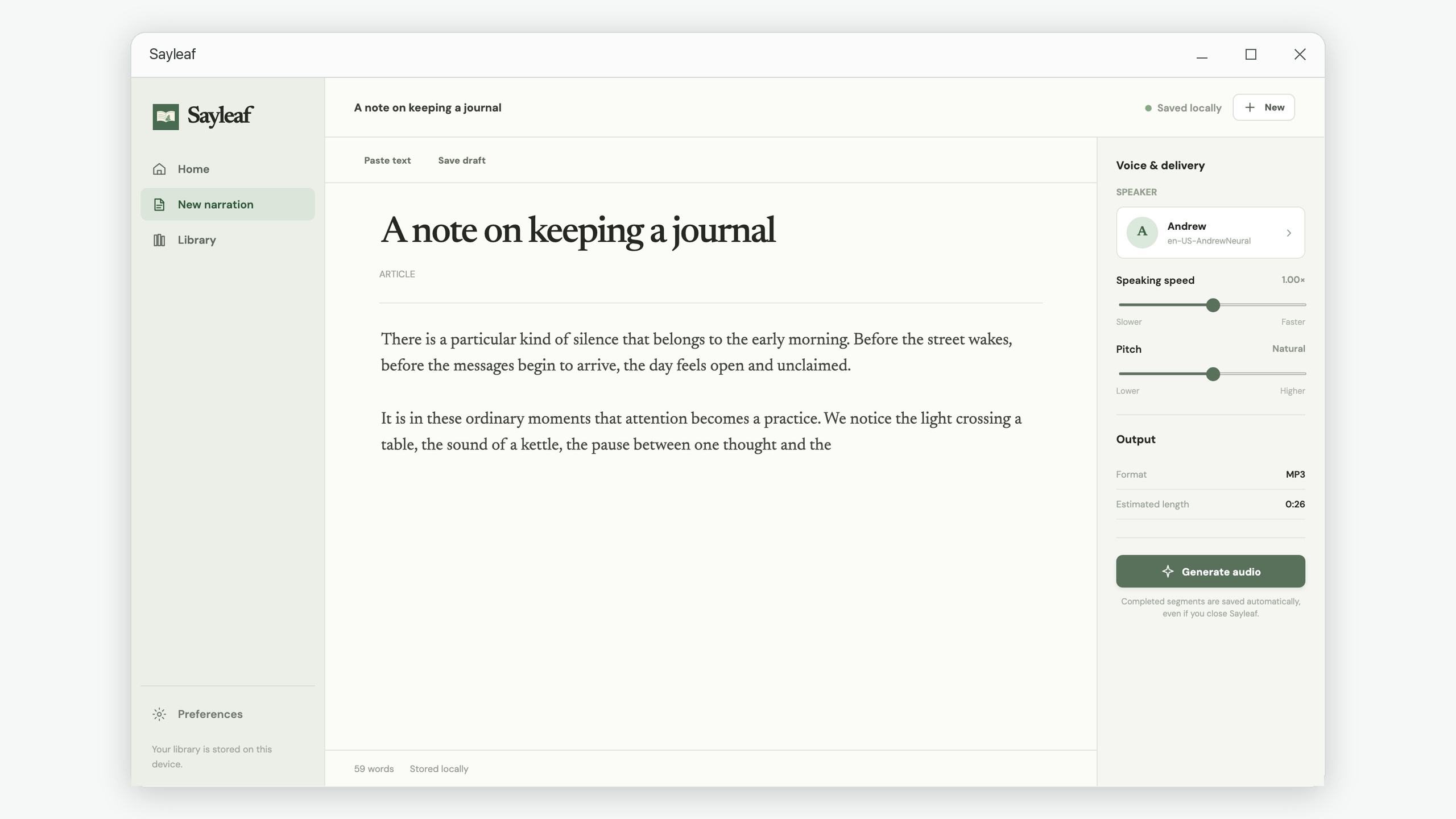
Open the speaker selector under Voice & delivery. Choose the language of the article, then browse regional voices and use the preview buttons to compare them. Confirm your selection with Use voice.
Start with the default speaking speed and a natural pitch. If this is your first narration in that language, try a separate short excerpt before committing a long article. Include a heading, a sentence with a number, and a sentence typical of the rest of the text. The voice selection guide explains a more deliberate comparison.
4. Generate and check the beginning, middle, and end
Choose Generate audio and keep the internet connection available. When the narration is ready, use the player to check its opening. Move the seek bar to a middle paragraph and then to the ending. This quick inspection can catch copied page clutter, an unsuitable voice, or text that was missing before generation.
The player’s speed control changes how you listen inside Sayleaf. To change the pace of the exported narration itself, use Edit and regenerate, adjust Speaking speed in the editor, and generate the audio again.
5. Export a file you can find later
Choose Save MP3. In the dialog, review
File name and Save to, choose an
existing destination folder, and select Save MP3.
Use a name such as reading-week-04.mp3 rather than an
indistinguishable collection of “article” files.
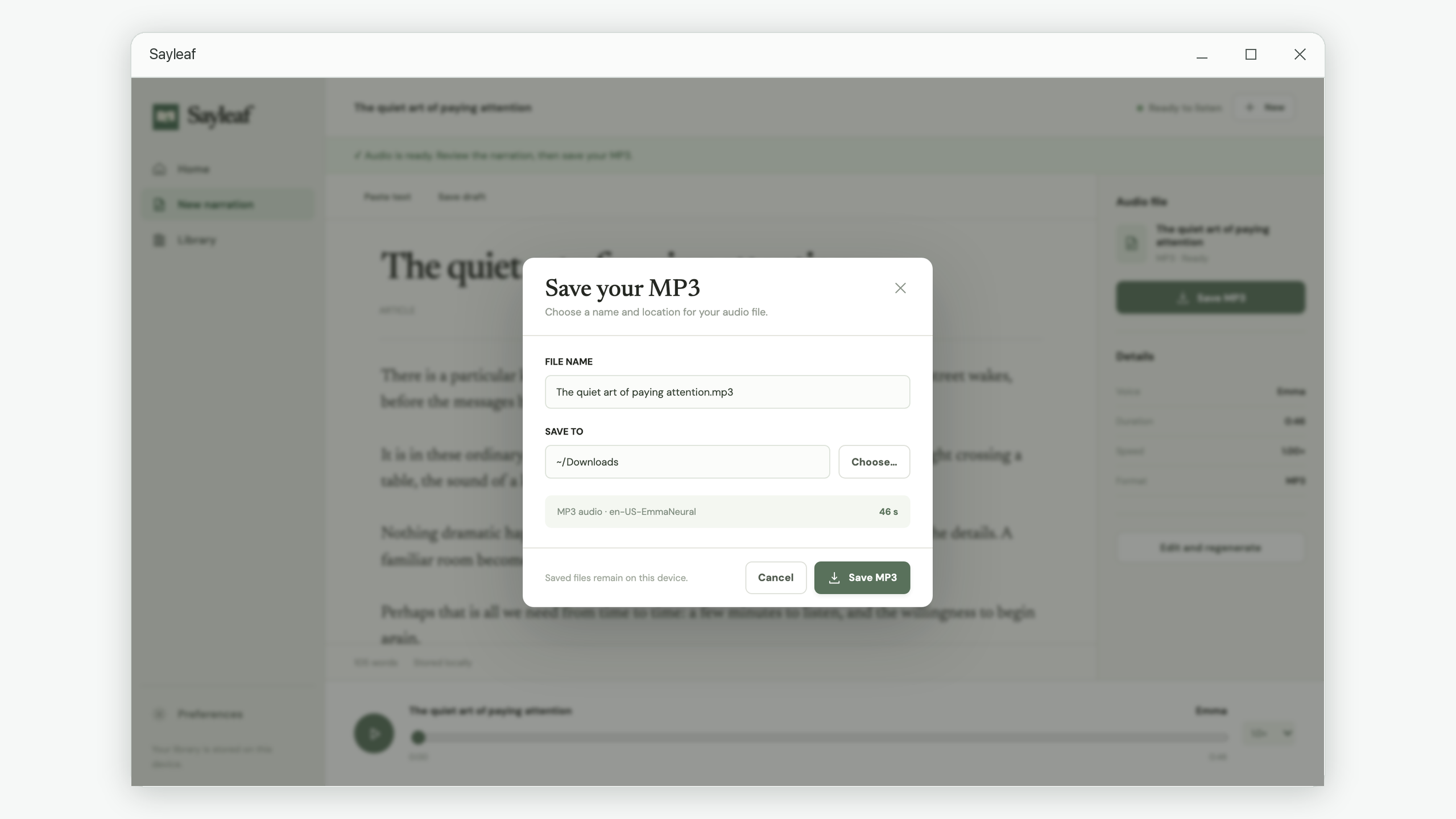
If a file with the same name already exists in that folder, choose a different name. Sayleaf does not overwrite it. You can then copy the exported MP3 to another device using your usual file-transfer method. Your Sayleaf Library stays on the original device; it does not synchronize the article or transfer the MP3 for you.
Before you leave the screen
- The audio contains the article’s opening and ending.
- The voice matches the text’s language.
- The exported file is in the folder you chose.
- You have opened the exported MP3 in the player you intend to use.
If a long narration stops before completion, keep the saved article and follow the resume-generation tutorial. Completed segments can be reused while missing segments are generated.