 Sayleaf
Voice selection
How to Choose a Text-to-Speech Voice by Language and Accent
A long list of voice names gives you many choices and very little direction. Start with the language of your text, narrow the choice by region, and only then compare how a voice sounds. This turns an overwhelming list into a small, useful decision.
Language → region or accent → voice → speaking speed. Keep pitch natural initially, and test the voice on a short piece of your own writing before generating a long article.
1. Match the voice to the text’s language
Open the speaker card in Sayleaf’s editor. The left column lists languages, and the right column shows voices for the active language, grouped by region. Language names follow your interface language. You can also search by language, region, voice name, or locale code.
The interface language and the speaker language are separate choices. An English interface does not mean an English voice is the right speaker for a French article. Select the language you want spoken, rather than changing the interface just to find its voices.
When you reopen the selector, Sayleaf selects your current speaker’s language and scrolls to the selected language and voice. You can compare another option without first finding your existing choice again. The available catalog comes from the speech service, so its voices and total count can change.
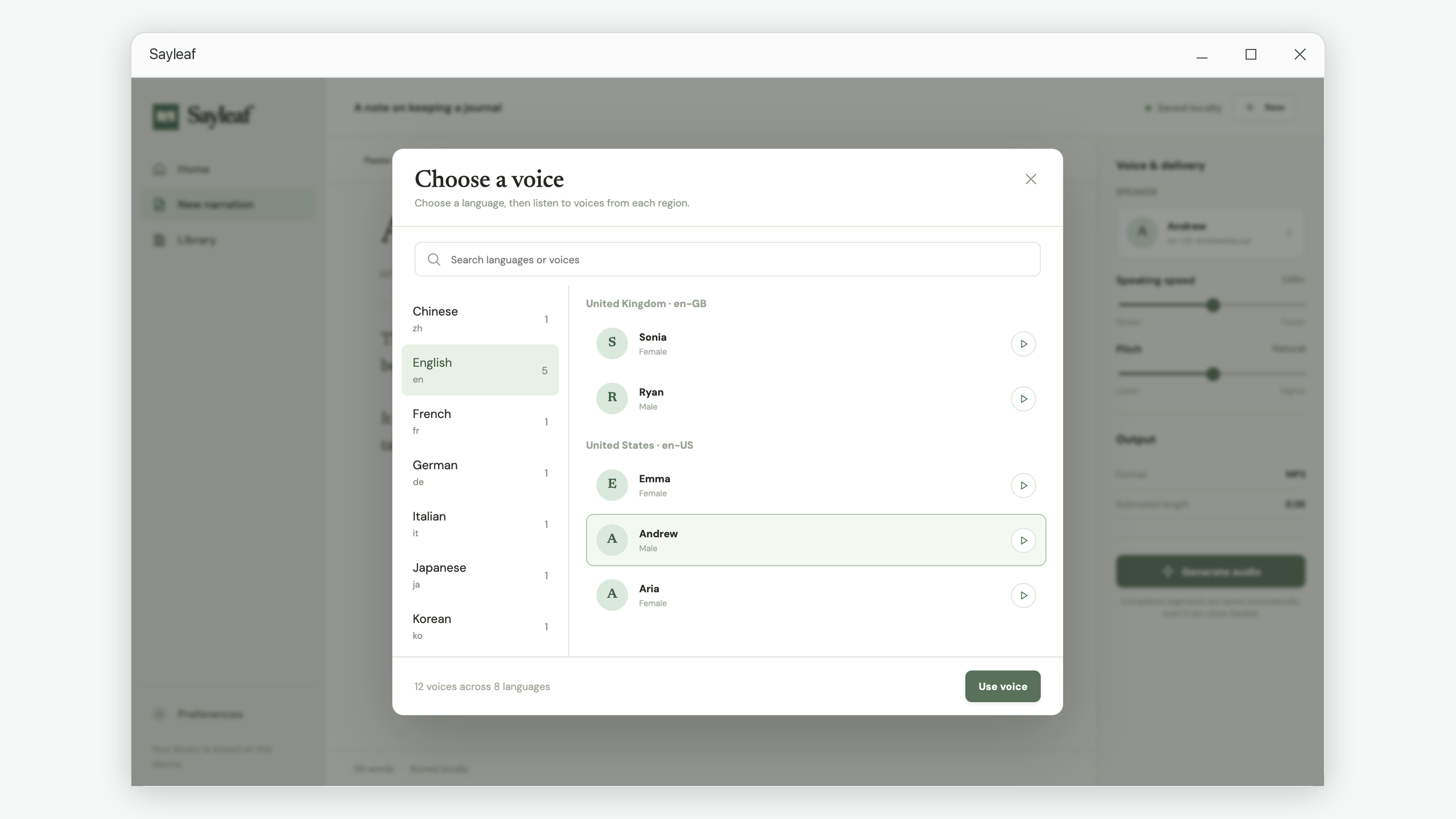
2. Choose a region that fits the listener
Within English, for example, a United Kingdom voice and a United States voice are separate regional choices. Use the region heading as a starting point when the audience expects a particular accent. Then compare the voices within that region: a shared locale does not make every speaker sound identical.
A short preview helps you compare tone and vocal character. It is a sample, not a reading of your entire article. For pronunciation, pacing, or a language other than the preview text, generate a brief excerpt in a separate narration and listen to the actual result.
3. Compare voices using the same passage
A consistent passage makes a comparison easier. Choose roughly one paragraph from your article and include any terms likely to be difficult: a person’s name, a place name, a number, or an abbreviation. Here is an English test passage you can adapt:
On Thursday, the reading group meets at half past six. Bring chapter three and a short note about the main character. What changed between the opening scene and the final paragraph?
Generate it with one voice, listen, then select another voice and regenerate that same excerpt. Keep the speed and pitch unchanged while comparing speakers. Otherwise, you are comparing several changes at once and may pick the faster delivery rather than the voice you prefer.
- Clarity: can you follow the passage without looking at the text?
- Pronunciation: do the names and important terms sound suitable for this article?
- Pauses: do sentence boundaries and questions sound understandable?
- Listening comfort: would you want to hear this voice for the full article?
4. Keep speaking speed and playback speed separate
Sayleaf has two different ways to change pace. They solve different problems:
| Control | When to use it | What it changes |
|---|---|---|
| Speaking speed in the editor | The narration itself should be slower or faster. | The newly generated audio, including the MP3 you export. |
| Pitch in the editor | You want to test a higher or lower delivery. | The newly generated audio; it requires regeneration. |
| Speed in the player | You want to review existing audio at your preferred pace. | Playback inside Sayleaf, without generating new audio. |
Change one setting, listen to the same passage, and decide whether the change helped. A small adjustment is easier to evaluate than moving both sliders to their limits. Keep the original wording if precise pronunciation matters; text-to-speech can still read an unfamiliar name in a way you did not expect.
5. Save your usual voice for the next article
Open Preferences and choose Default voice to use the same language-grouped selector. You can also choose a default speaking speed. These settings are applied to new narrations; review the settings of an existing article separately.
For mixed-language writing, test a passage containing each language. A voice selected for one language should not be assumed to pronounce every other language as intended. If the result is unsuitable, separate the text into language-specific narrations or try another available voice.
Use the chosen voice on your article
Once your short test sounds suitable, return to the full article, confirm the speaker and delivery settings, and generate it. Follow the article-to-MP3 tutorial to inspect the finished audio and export it. If you are using the narration to review a draft, the listening-based proofreading workflow gives you a structured first pass.